To transfer data from computers not maintained by the IT department:
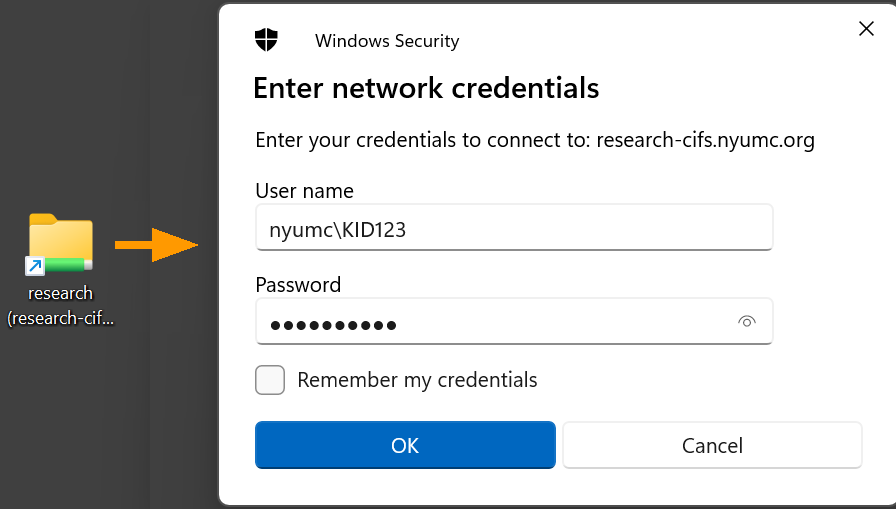
Look for a folder shortcut on the desktop.
If you do not have this shortcut, you may copy-paste or type this path in the address bar of a directory window.
\\research-cifs.nyumc.org\research

User: nyumc\yourKerberosID
Note that you have to type "nyumc\".
When you connect to the server, you should see at least two directories.
1. Your lab
2. Open_Share_Emptied_on_Sunday
For instance, my connection looks like this:
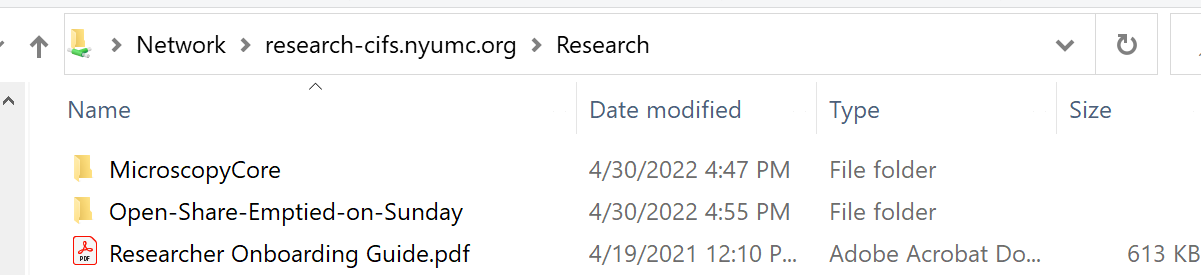
If you do not have access to both, file a ticket with IT to get access.
Open_Share_Emptied_on_Sunday is a location on the research server where you can copy and paste files so that they are accessable to anyone else within the firewall. Put the files inside the temp directory.
How do you access this?
If you are using a computer that is not maintained by IT, you need to connect manually.
If you are using a computer that is maintained by IT, a.k.a. on the domain, where you log in with your KID and system password, you should connect automatically. If you do not connect automatically, file a ticket with MCIT asking to have these directories added to your profile when you log in on any computer.
New in 2026:
\\research-cifs.nyumc.org\dart\ is for data from DART cores.
Cores may deliver data to you in \\Research-cifs.nyumc.org\dart\cores\microscopy\labs\
Look for your lab and you folder within your lab. These data are private and permanent.
To deliver to cores, you may save your data in labs-input. Unlike Open_share, these data are private. Only cores may read the data, but may not change the data. The data are kept on the server.
To disconnect, the easiest method is to log out or sign out of the account.
To connect from a Mac, the server's address is
smb://research-cifs.nyumc.org/research
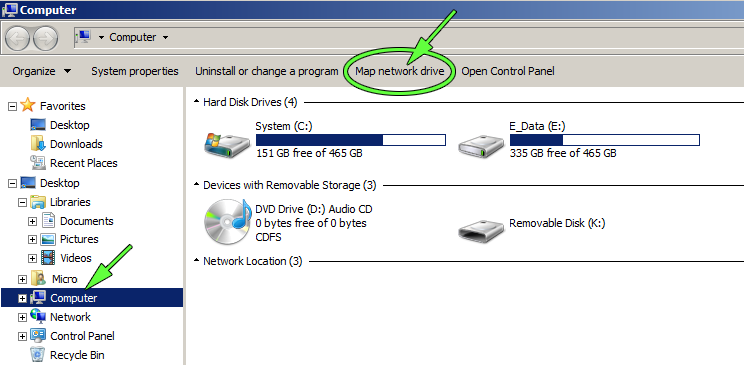
For windows 10, you may need to click on the Network button in the left menu to mount the drive.
When you are done, log out of account to disconnect the share. Windows 10 and 11 may say "sign out".
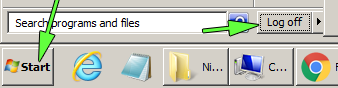 or
or
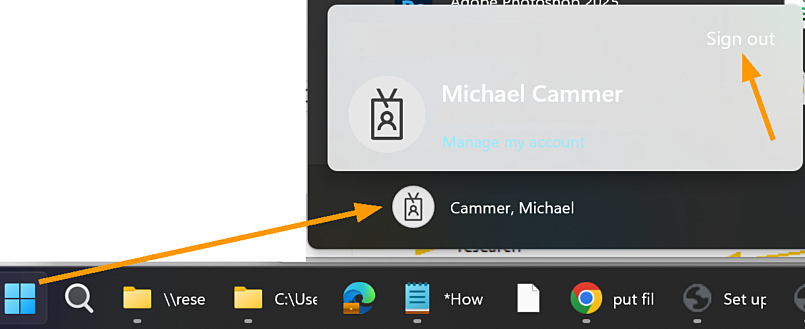
If you cannot connect, try logging out and logging back in.
If you log in to your computer using KID, you should have access directly to the research server R:
On a Mac, the drives are not lettered.
If you go a directory up from your lab directory on the research server, you will see Openshares.
For instance, my connection looks like this:
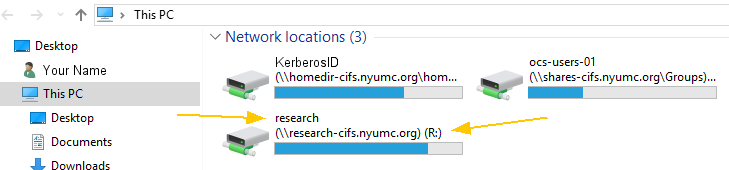
If you do not see the connection to research server with Open Share and the labs spaces you have access to, you need to contact IT to fix this. You can do this by contacting your local IT expert or filing a ticket online.
New in 2026:
For MAC OS:
The address you need to type in:
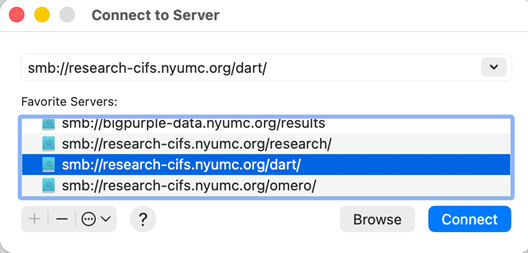
Finder > Go > Connect to server is smb://research-cifs.nyumc.org/dart/
(remember to make it a favorite by clicking the + sign).
You can also ask MCIT to add this to your profile so that it connects automatically when you log in.
For Windows:
Open windows explorer, right click on 'This PC' > map network drive
\\research-cifs.nyumc.org\dart\
I like to map the old research server at R: and the new one as Q: and have MCIT put this in my profile so it connects automatically from any computer when I log in.
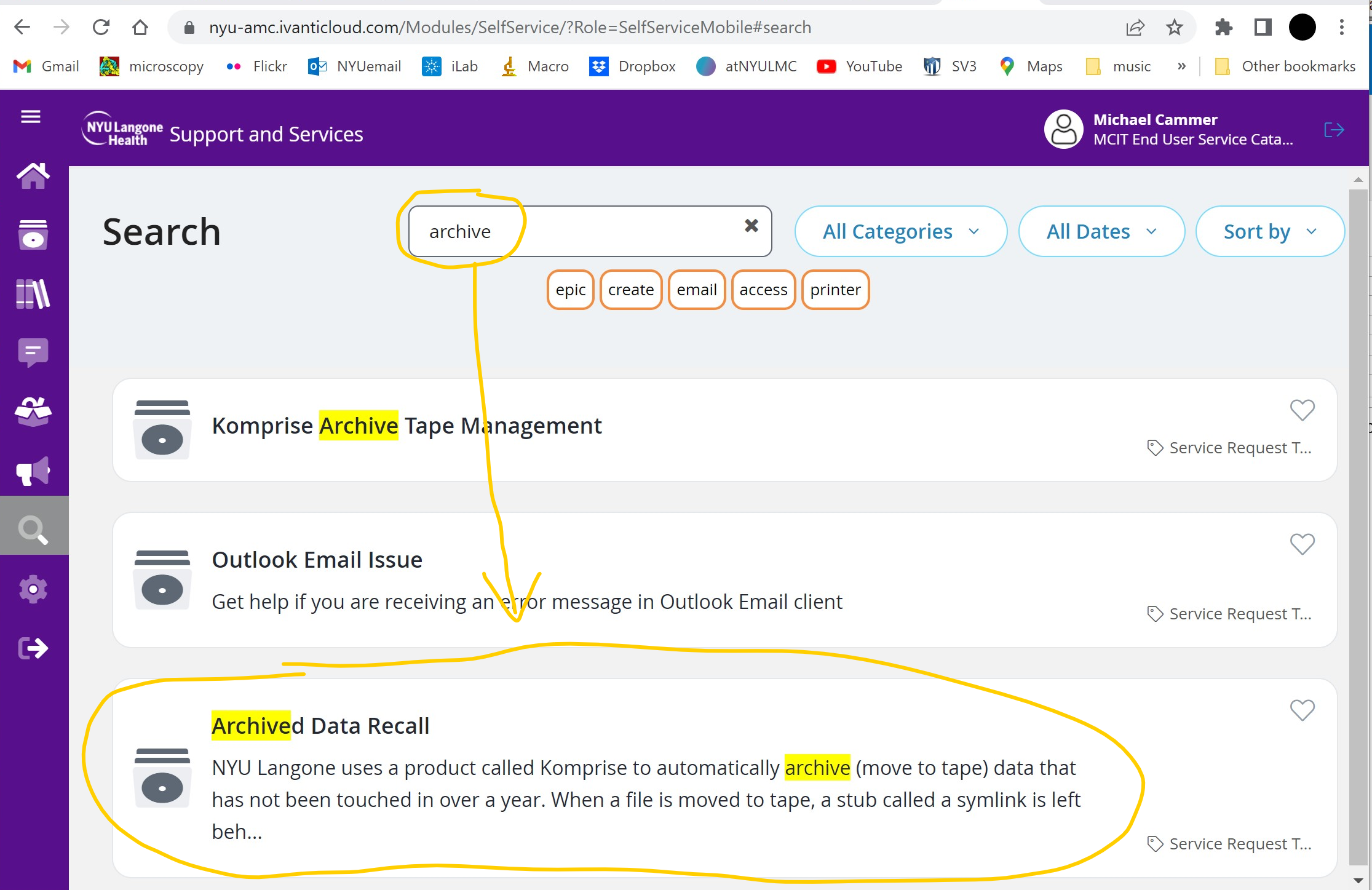
Uh, oh, my files have disappeared. What is this .symlink?
You cannot find your files because MCIT automatically archives files greater than 100MB which are not used for a year. Your files have been sent to tape.
This is from their web pages:
"Archived Data Recall
NYU Langone uses a product called Komprise to automatically archive (move to tape) data that has not been touched in over a year.
When a file is moved to tape, a stub called a symlink is left behind that has the original filename but a different extension and appears to take up little or no space. Under some circumstances you can double-click the file and it will be retrieved from tape, but it will take much longer than opening an unarchived file. In some cases it won’t open at all and that’s an instance where you should reach out to MCIT using this form. Another reason why you might need MCIT to do this for you is if you want to retrieve entire directories of files."
The procedures for archiving and retrieving archived data may change at any time without notice.